

SIP (Session Initiation Protocol) video intercom systems have become increasingly popular in various settings, including residential complexes, commercial buildings, and industrial facilities. These systems offer a convenient and efficient way to communicate, verify visitors, and control access. One of the key aspects of getting the most out of your SIP video intercom is properly configuring the call settings. In this blog post, as a SIP Video Intercom supplier, I'll guide you through the process of configuring call settings in a SIP video intercom system.
Understanding the Basics of SIP Video Intercom Call Settings
Before diving into the configuration process, it's important to understand the basic components and functions of call settings in a SIP video intercom system. Call settings typically include options related to call routing, call forwarding, call waiting, call recording, and audio and video quality adjustments.
- Call Routing: This determines how incoming calls are directed within the system. You can set up rules to route calls to specific devices or groups of devices based on factors such as time of day, caller ID, or location.
- Call Forwarding: Allows you to forward incoming calls to another device or number if you're unavailable. This can be useful for ensuring that you never miss an important call.
- Call Waiting: Enables you to receive a new call while you're already on a call. You can choose to answer the new call, put the current call on hold, or ignore the new call.
- Call Recording: Some SIP video intercom systems offer the option to record calls for security or compliance purposes. You can configure the system to record all calls, or only specific calls based on certain criteria.
- Audio and Video Quality: Adjusting the audio and video quality settings can help ensure clear and smooth communication. You can typically adjust settings such as resolution, frame rate, and audio codec.
Step-by-Step Guide to Configuring Call Settings
Now that you have a basic understanding of the call settings in a SIP video intercom system, let's walk through the process of configuring them. The exact steps may vary depending on the make and model of your system, but the general principles are the same.
Step 1: Access the System Configuration Interface
The first step is to access the configuration interface of your SIP video intercom system. This is usually done through a web browser or a dedicated management software. You'll need to enter the IP address of the system and your login credentials to access the interface.
Step 2: Navigate to the Call Settings Section
Once you're logged in to the configuration interface, navigate to the call settings section. This may be located under a menu item such as "Calls," "Call Settings," or "Telephony Settings."
Step 3: Configure Call Routing
The first setting you'll want to configure is call routing. This involves setting up rules to determine how incoming calls are directed within the system. You can typically create multiple routing rules based on different criteria.
- By Time of Day: You can set up different routing rules for different times of the day. For example, you may want to route calls to a specific device during business hours, and to another device after hours.
- By Caller ID: You can configure the system to route calls based on the caller ID. For example, you can set up a rule to direct calls from a specific number to a particular device or group of devices.
- By Location: If your SIP video intercom system is installed in multiple locations, you can set up routing rules based on the location of the device. For example, you can route calls from a specific entrance to a device in the security office.
Step 4: Set Up Call Forwarding
Call forwarding is a useful feature that allows you to redirect incoming calls to another device or number if you're unavailable. To set up call forwarding, follow these steps:
- Select the Device: Choose the device for which you want to enable call forwarding. This could be a specific SIP video intercom unit or a user account.
- Choose the Forwarding Option: You can typically choose between different forwarding options, such as forwarding all calls, forwarding busy calls, or forwarding no-answer calls.
- Enter the Forwarding Number: Enter the phone number or SIP address where you want the calls to be forwarded.
Step 5: Enable Call Waiting
Call waiting allows you to receive a new call while you're already on a call. To enable call waiting, simply toggle the call waiting option to "On" in the call settings section. You can also configure additional settings, such as whether to play a tone when a new call arrives.
Step 6: Configure Call Recording
If your SIP video intercom system supports call recording, you can configure the system to record calls for security or compliance purposes. To configure call recording, follow these steps:
- Select the Recording Option: You can choose to record all calls, only specific calls based on certain criteria, or no calls at all.
- Set the Recording Duration: Specify how long the system should record each call. You can typically choose between different time intervals, such as 1 minute, 5 minutes, or 10 minutes.
- Choose the Storage Location: Select where the recorded calls should be stored. This could be on the local device, a network storage device, or a cloud storage service.
Step 7: Adjust Audio and Video Quality
To ensure clear and smooth communication, you may need to adjust the audio and video quality settings. To do this, navigate to the audio and video settings section in the configuration interface.
- Resolution and Frame Rate: You can typically adjust the resolution and frame rate of the video stream to optimize the quality. Higher resolutions and frame rates will result in better video quality, but may also require more bandwidth.
- Audio Codec: Choose the audio codec that provides the best balance between audio quality and bandwidth usage. Popular audio codecs include G.711, G.722, and Opus.
Additional Considerations
In addition to the basic call settings, there are a few other considerations that you should keep in mind when configuring your SIP video intercom system.

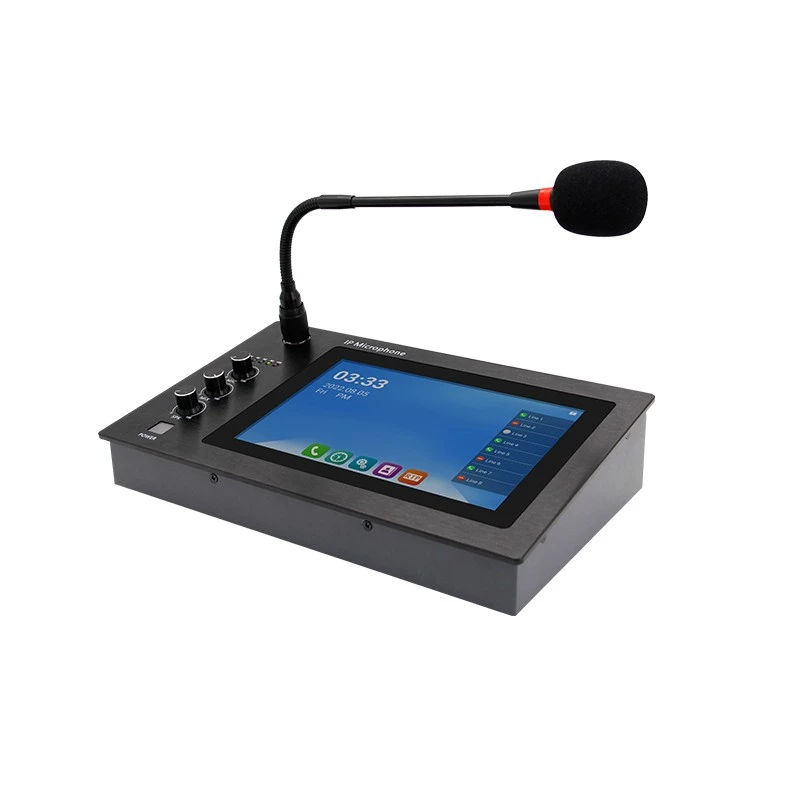
- Integration with Other Devices: Many SIP video intercom systems can be integrated with other devices, such as IP Paging Adapter, VoIP Microphone, and SIP Door Entry System. Make sure to check the compatibility of your system with these devices and configure the integration settings accordingly.
- Security Settings: Protect your SIP video intercom system from unauthorized access by configuring strong security settings. This may include setting up passwords, enabling encryption, and implementing access control measures.
- Testing and Troubleshooting: After configuring the call settings, it's important to test the system to ensure that everything is working properly. Make some test calls and check the audio and video quality, call routing, and other settings. If you encounter any issues, refer to the system documentation or contact your supplier for assistance.
Conclusion
Properly configuring the call settings in your SIP video intercom system is essential for getting the most out of your investment. By following the steps outlined in this blog post, you can ensure that your system is set up to provide clear and reliable communication, efficient call routing, and other useful features.
If you're interested in purchasing a SIP video intercom system or need further assistance with configuration, feel free to reach out to us. We're a leading SIP Video Intercom supplier with a wide range of products and services to meet your needs. Contact us today to start a discussion about your requirements and explore how our solutions can enhance the security and convenience of your property.
References
- SIP (Session Initiation Protocol) RFC: The official specification for SIP, which provides detailed information about the protocol and its features.
- Manufacturer's Documentation: The documentation provided by the manufacturer of your SIP video intercom system, which includes detailed instructions on configuration and operation.